
An interactive website should make a business easier to understand, not make visitors work harder to reach its content. A portfolio preview can communicate quality immediately. A useful transition can explain where a menu opened. But a long entrance sequence, an unfamiliar scrolling system, or a constantly moving background can distract from the reason someone arrived.
Modern website animation is most effective when it belongs to a clear design system. That system defines what moves, why it moves, how the experience behaves on mobile, and what happens when someone prefers less movement. This guide provides a practical brief for business owners, designers, and developers who want an engaging website without sacrificing clarity, accessibility, or reliable interaction.
Give every animation a job
Before choosing an animation library, describe the purpose of the movement. Useful purposes include confirming an action, connecting two interface states, drawing attention to a meaningful change, or demonstrating work. “Make it feel premium” is an aesthetic goal, but it is not a complete behavioural specification.
Classify proposed effects into functional and decorative groups. Functional motion helps explain an interaction, such as a panel opening or a product option changing. Decorative motion adds character, such as a slowly shifting background. Both can have a place, but they should not receive the same priority when the experience needs to be simplified.
For each effect, write a one-sentence reason for including it. If the team cannot explain the benefit without referring to a competing website, reconsider the effect. Inspiration is useful; copying movement without understanding its role usually produces an inconsistent experience.
Start with a complete static design
A page should communicate its main message before any animation starts. Check the headline, navigation, content order, imagery, and primary action as a still composition. If the page feels unclear when paused, movement is unlikely to solve the underlying hierarchy.
Create a static version of the hero and the most important internal page. Review them at desktop and mobile widths. Ask where the eye goes first, what the visitor learns, and whether the next action is apparent. Resolve those questions before deciding how elements enter.
This approach also produces a useful fallback. If an effect is unavailable, delayed, or intentionally reduced, the page still has a coherent resting state. The goal is an engaging website that remains understandable throughout the visit, not a design that only makes sense after a sequence completes.
Define a small motion vocabulary
A motion vocabulary is a limited set of repeatable behaviours. For a service website, it might include a short button response, a restrained menu transition, a one-time content reveal, and a controlled portfolio preview. These behaviours can express the brand without animating every element differently.
Specify the trigger, moving element, direction, duration range, easing character, and final state. Use short descriptions that a designer and developer can both interpret. For example: “The project preview changes on selection; the caption remains readable and the next control stays in place.”
Keep the system small enough to maintain. If each section uses a different timing style, the website can feel assembled from unrelated demonstrations. A consistent language of movement supports the same identity established by typography, colour, and spacing.
Treat the hero as an introduction, not an obstacle
A homepage hero often receives the most elaborate effects and the least disciplined restraint. Keep the headline and primary action available promptly. Avoid an introduction that makes every returning visitor wait through the same sequence before using the site.
When showing portfolio images, decide whether motion is necessary to understand them. A clear first example should stand on its own. If the preview changes automatically, provide an understandable way to pause it and inspect the current item. Captions should remain associated with the correct project.
Choose one dominant animated feature rather than combining moving text, multiple image tracks, particles, and cursor distortion at equal strength. The business still needs a readable offer. The animation should support that offer instead of competing with it.
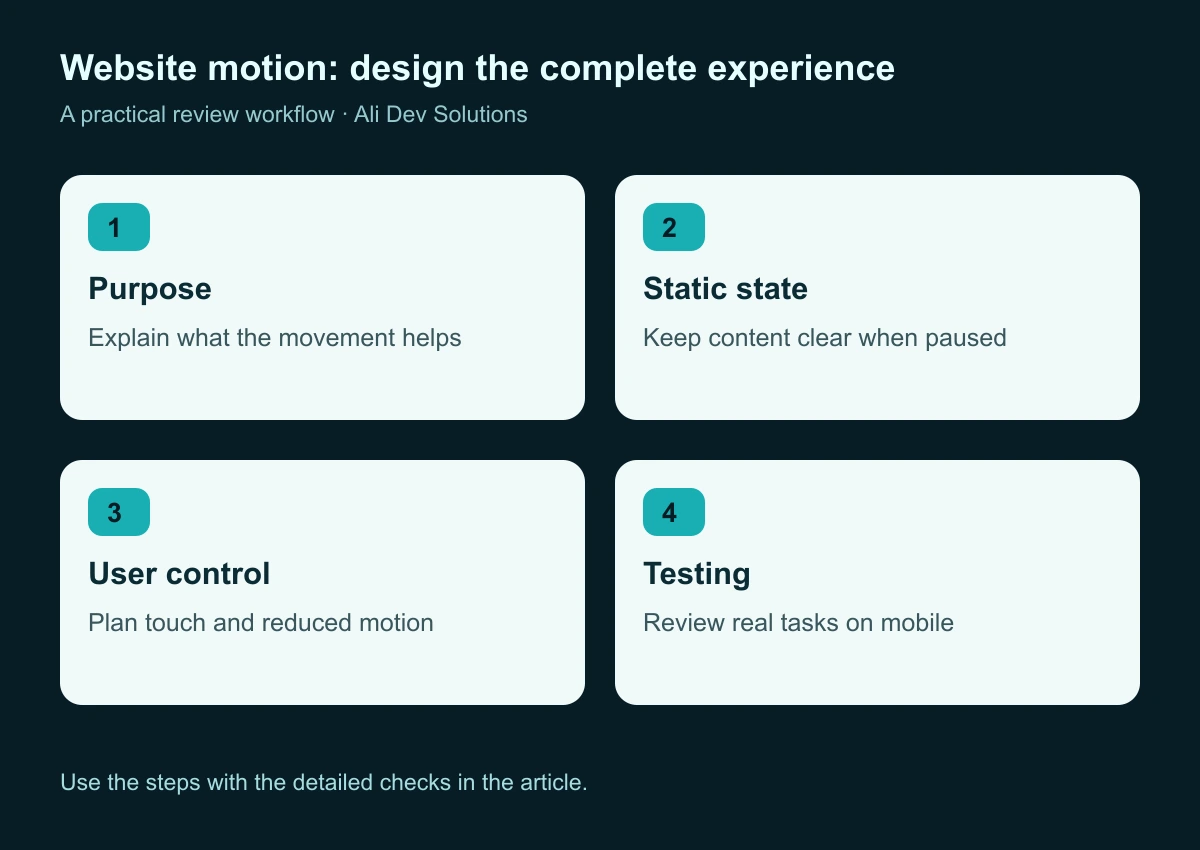
Review the purpose and fallback before adding complexity to an effect.
Design reduced motion as an intentional experience
Some visitors prefer less animation. The browser's prefers-reduced-motion media feature allows a website to respond to that preference. Google's web.dev motion guidance recommends considering user control and reduced-motion preferences when designing movement.
Define the reduced-motion version while creating the main design. Decide which effects disappear, which become immediate state changes, and which keep a minimal transition because it helps explain an action. A static portfolio image with working next and previous controls can still be an attractive experience.
Do not assume that reducing the duration of every effect is the same as designing a calm interface. A fast zoom can still be uncomfortable, and an instant repositioning can still be confusing. Review the result visually and preserve the information the movement was intended to communicate.
Keep mobile interaction independent of hover
A custom cursor or pointer-following preview may be engaging on a desktop, but touch visitors need an equally clear way to reach the same content. Essential information should not exist only inside a hover state. Project titles, useful labels, and primary actions should remain discoverable.
For a portfolio grid, use a visible image, a readable project title, and an explicit destination. Hover can add a preview or a subtle response without becoming the only indication that the item is interactive. On touch screens, one tap should have a predictable result.
Test the interface on a narrow screen with a long project title. Check that controls do not overlap captions, that fingers can reach the intended target, and that a swipe does not conflict unexpectedly with page scrolling. Desktop spectacle is not a substitute for a deliberate mobile composition.
Avoid making the cursor carry the interface
Custom cursor effects deserve special scrutiny. A pointer label can offer supplementary feedback, but it should not replace a familiar link or button. It should also avoid covering the text someone is trying to read.
Keep the normal interaction understandable when the custom effect is disabled. Review keyboard focus independently, because a visually interesting pointer does not help someone navigating with the keyboard. Check the experience over form fields, external links, menus, and embedded content, where cursor behaviour can become inconsistent.
For a business-services site, a restrained project-preview effect may be enough. An always-moving cursor, a trail, and a magnetic button effect on every action can become visual noise. Choose the smallest intervention that adds character without asking the visitor to learn a new control system.
Preserve normal reading and scrolling
Visitors should be able to move through an article, service page, or contact form at their own pace. Before introducing scroll-linked effects, check that normal browser navigation remains predictable. Test reaching an anchor, returning from a detail page, and using the keyboard to move through content.
Use pinned or staged sections selectively. If a visitor must scroll repeatedly before anything meaningful changes, the effect may create the impression that the website is stuck. A long portfolio sequence should offer context about where the visitor is and what comes next.
Keep essential content available outside the animation choreography. For a long guide, a clear heading structure and reliable links are more important than revealing each sentence on a timeline. Our website information architecture guide explains how to make the underlying journey coherent first.
Budget performance before selecting tools
Treat performance as part of the visual brief. Record the media involved in each effect, the scripts it requires, and the conditions under which it should run. Large background media and complex effects need a stronger justification than a small interface transition.
The web.dev animation performance guide recommends approaches based on properties such as transform and opacity and explains the cost of rendering work. These are implementation considerations, not permission to animate without testing. A visually simple effect can still become expensive when repeated across many elements.
Start with the simplest suitable implementation. A modest CSS transition may be sufficient for a button or card. More involved sequences may justify a dedicated tool, but the team should understand what that tool adds and how the effect is maintained after handover.
Test responsiveness, not just initial loading
A page that appears quickly can still respond poorly once the visitor starts interacting. Test opening the menu, switching project previews, expanding questions, and entering form information while the decorative effects are running.
Observe whether actions feel delayed, controls move unexpectedly, or text becomes difficult to select. Repeat the same tasks with reduced motion enabled and with the decorative layer removed. This comparison helps identify whether the effect is contributing to the problem.
Use the INP optimisation guide when slow interactions require deeper investigation. For third-party integrations, the script audit workflow helps establish which tools are actually needed. Avoid adding another animation dependency before understanding the work already occurring on the page.
Write a motion specification developers can use
A useful handover contains more than a screen recording. For each effect, describe the initial state, trigger, active state, final state, and interruption behaviour. Explain what should happen when someone clicks again quickly, changes the viewport, or navigates away midway through a transition.
Include the reduced-motion version and the touch version. State whether an effect runs once, repeats, or follows a visitor-controlled action. Specify where automatic movement can be paused and how its current state is communicated visually.
Reference the design components involved so changes remain connected to the wider system. Our Figma design-token guide and responsive handover guide provide a foundation for naming and documenting those relationships.
Apply the system to a practical portfolio example
Imagine a small digital studio with twelve projects. This is an illustrative design exercise. The homepage needs to introduce the studio, demonstrate the quality of its work, and help a prospective client choose a relevant next step. A project preview is useful because the work is part of the evidence.
A sensible first version might show one clear featured project, visible previous and next controls, a stable caption, and an optional automatic progression with a pause control. The portfolio page could use a static grid with a modest hover response rather than repeating the same slider.
The contact page needs a different emphasis. Reduce decorative movement near fields, keep the submit action stable, and use clear feedback after an action. Reusing the same brand does not require reusing the same amount of motion on every page.
Review with a task-based checklist
Ask someone unfamiliar with the design to complete a small set of tasks. Can they explain the business after the first screen? Can they inspect a project without the image changing unexpectedly? Can they open the menu, find a service, and reach the contact page? Can they complete the form without a moving element interrupting them?
Repeat at a narrow width and with a keyboard. Test a page after navigating back to it, not only after a fresh load. Check what happens if the animation script is delayed or a media asset is unavailable.
Record specific failures rather than broad reactions such as “it feels slow.” A useful issue describes the action, observed behaviour, expected behaviour, and conditions. That gives the team a change it can make and verify.
Common questions about interactive website design
Will more animation make the website convert better? That needs evidence from the actual audience and task. Movement can clarify or distract. Start with an understandable journey and evaluate useful actions rather than assuming an effect will improve commercial results.
Should every section reveal on scroll? Usually the design does not need that much repetition. Reserve stronger movement for a few moments that support the story. Important text should remain easy to reach and read.
Can we match a reference exactly? A reference can communicate a preferred level of expression. Your content, project imagery, visitor tasks, and maintenance needs should determine the final behaviour.
Is a static reduced-motion version less premium? It can be equally polished. Quality comes from composition, typography, imagery, and clear interaction as well as movement.
Build one complete interaction before expanding
Choose one important feature and finish all its states. A well-designed project preview with clear controls, a touch version, reduced motion, and responsive behaviour provides a stronger foundation than many unfinished effects.
Then apply the same principles to the menu, buttons, and supporting sections. Keep a small motion inventory with the owner and testing notes. This makes future changes more predictable and helps prevent visual drift as new pages are added.
If you want a more engaging website, Ali Dev Solutions can connect Figma and UI/UX design with practical implementation. Share your current website and preferred direction so the design brief can focus on the interactions that will actually help your visitors.